Remote work is now part of everyday life for millions. People love the freedom, but working from home also brings new challenges. Distractions, unclear communication, and trouble staying organized can hurt productivity. So, the right tools are essential. If you’re a remote worker, choosing the best productivity apps can make your day smoother, help you hit deadlines, and keep your team connected—even if everyone’s far apart.
This guide explores the most powerful productivity apps for remote workers. You’ll see how each app works, compare their features, and learn which tools fit different needs. Whether you’re a freelancer, a tech enthusiast, a small business owner, or just want to work better from home, these recommendations are practical and easy to follow.
Let’s dive in and discover how to turn your home office into a place where work gets done.
Remote work means you rely on digital tools to get everything done. Unlike an office, you don’t have in-person meetings, whiteboards, or quick chats. Instead, you use apps for communication, task management, collaboration, and focus. The right apps help you:
Many beginners skip over these points, thinking a simple to-do list is enough. But as projects grow, you need smarter tools to stay efficient. Also, the best apps can save you hours each week by automating tasks or simplifying workflows.
Remote workers need more than just one tool. Productivity apps fall into key categories:
Each category solves a specific problem for remote teams. Picking the right mix is critical.

Credit: www.crossover.com
Managing tasks is the foundation of productivity. Without a clear plan, remote work can become chaotic. Here are some top apps:
Trello uses boards, lists, and cards to make project management visual and simple. You can drag and drop tasks, assign teammates, add deadlines, and attach files. Trello is flexible—perfect for both solo workers and teams.
Pros:
Cons:
Pricing: Free for basic, paid plans start at $5/month.
Asana helps remote teams track work from start to finish. You can create tasks, subtasks, timelines, and set priorities. Asana’s reporting tools show progress at a glance.
Pros:
Cons:
Pricing: Free for up to 15 users, paid plans start at $10.99/month.
ClickUp combines tasks, docs, goals, and chat in one platform. It’s highly customizable, so you can build the workspace you need.
Pros:
Cons:
Pricing: Free, paid plans start at $5/month.
Below is a feature comparison for project management apps:
| App | Free Plan | Custom Views | Integrations | Best For |
|---|---|---|---|---|
| Trello | Yes | Board | Many | Visual task tracking |
| Asana | Yes | List, Timeline | Many | Team projects |
| ClickUp | Yes | List, Board, Calendar | Extensive | All-in-one workspace |
Remote workers need clear, fast communication. Email is slow and often confusing. Modern apps offer instant chat, video calls, and easy file sharing.
Slack is the most popular team chat app. You create channels for different topics, direct message teammates, and integrate with tools like Google Drive or Trello.
Pros:
Cons:
Pricing: Free for small teams, paid plans start at $7.25/month.
Microsoft Teams combines chat, video calls, and file sharing. It’s ideal for organizations using Microsoft 365.
Pros:
Cons:
Pricing: Free, premium plans start at $4/month.
Zoom is the leader in video conferencing. It’s simple to join meetings, share screens, or record sessions.
Pros:
Cons:
Pricing: Free up to 40-minute meetings, paid plans from $14.99/month.
Here’s a quick look at the main differences:
| App | Type | Free Plan | File Sharing | Video Calls |
|---|---|---|---|---|
| Slack | Chat | Yes | Yes | Limited |
| Teams | Chat & Video | Yes | Yes | Yes |
| Zoom | Video | Yes | Screen sharing | Yes |
Distractions are everywhere when working from home. These apps help you manage time and stay focused.
RescueTime runs in the background and tracks how you spend your time. It shows detailed reports and helps you set goals to avoid distractions.
Pros:
Cons:
Pricing: Free basic plan, premium starts at $12/month.
Focus@Will uses music designed to help you concentrate. You pick channels for different moods or tasks.
Pros:
Cons:
Pricing: Free trial, plans from $9.99/month.
Freedom blocks websites and apps that distract you. You can schedule sessions and customize block lists.
Pros:
Cons:
Pricing: $8.99/month or $29/year.
Here’s how they compare for productivity and focus:
| App | Free Plan | Main Feature | Platforms | Best For |
|---|---|---|---|---|
| RescueTime | Yes | Time tracking | Windows, Mac, Android | Tracking habits |
| Focus@Will | No | Focus music | Web, iOS, Android | Audio-driven focus |
| Freedom | No | Website/app blocking | Windows, Mac, iOS | Distraction blocking |
Remote work depends on sharing files securely and easily. Cloud storage lets you access documents from anywhere.
Google Drive offers 15GB free storage and integrates with Google Docs, Sheets, and Slides. You can share files with anyone and control permissions.
Pros:
Cons:
Pricing: Free up to 15GB, paid plans from $1.99/month.
Dropbox is known for its simplicity. It’s fast, reliable, and works well for syncing files across devices.
Pros:
Cons:
Pricing: Free 2GB, paid plans from $9.99/month.
OneDrive is perfect for Microsoft users. It offers good storage, works with Office, and is built into Windows.
Pros:
Cons:
Pricing: Free 5GB, paid plans from $1.99/month.

Credit: desktime.com
Keeping track of ideas, meeting notes, and research is key for remote work. These apps make it easy to organize information.
Evernote is the classic note-taking app. You can write notes, clip web pages, add images, and organize everything with tags.
Pros:
Cons:
Pricing: Free, paid plans from $7.99/month.
Notion combines notes, databases, and task management. You can build custom pages, wikis, and track everything in one place.
Pros:
Cons:
Pricing: Free for personal, paid plans from $8/month.
OneNote is part of Microsoft 365. It’s free, supports rich notes, and works across devices.
Pros:
Cons:
Pricing: Free, included with Microsoft 365.
Remote workers often use many apps. Automation tools help them work together and save time.
Zapier connects over 5,000 apps. You build “Zaps” to automate tasks—like sending emails, moving files, or updating spreadsheets.
Pros:
Cons:
Pricing: Free, paid plans start at $19.99/month.
IFTTT (If This Then That) automates simple tasks between apps and devices. Great for personal workflows.
Pros:
Cons:
Pricing: Free, paid plans from $5/month.
Choosing the right apps can feel overwhelming. Here’s how to make smart decisions:
Many beginners forget to check integration. For example, if you use Slack and Google Drive, make sure your project management app connects to both. This saves time and prevents frustration.
Let’s look at how remote workers use these apps in practice.
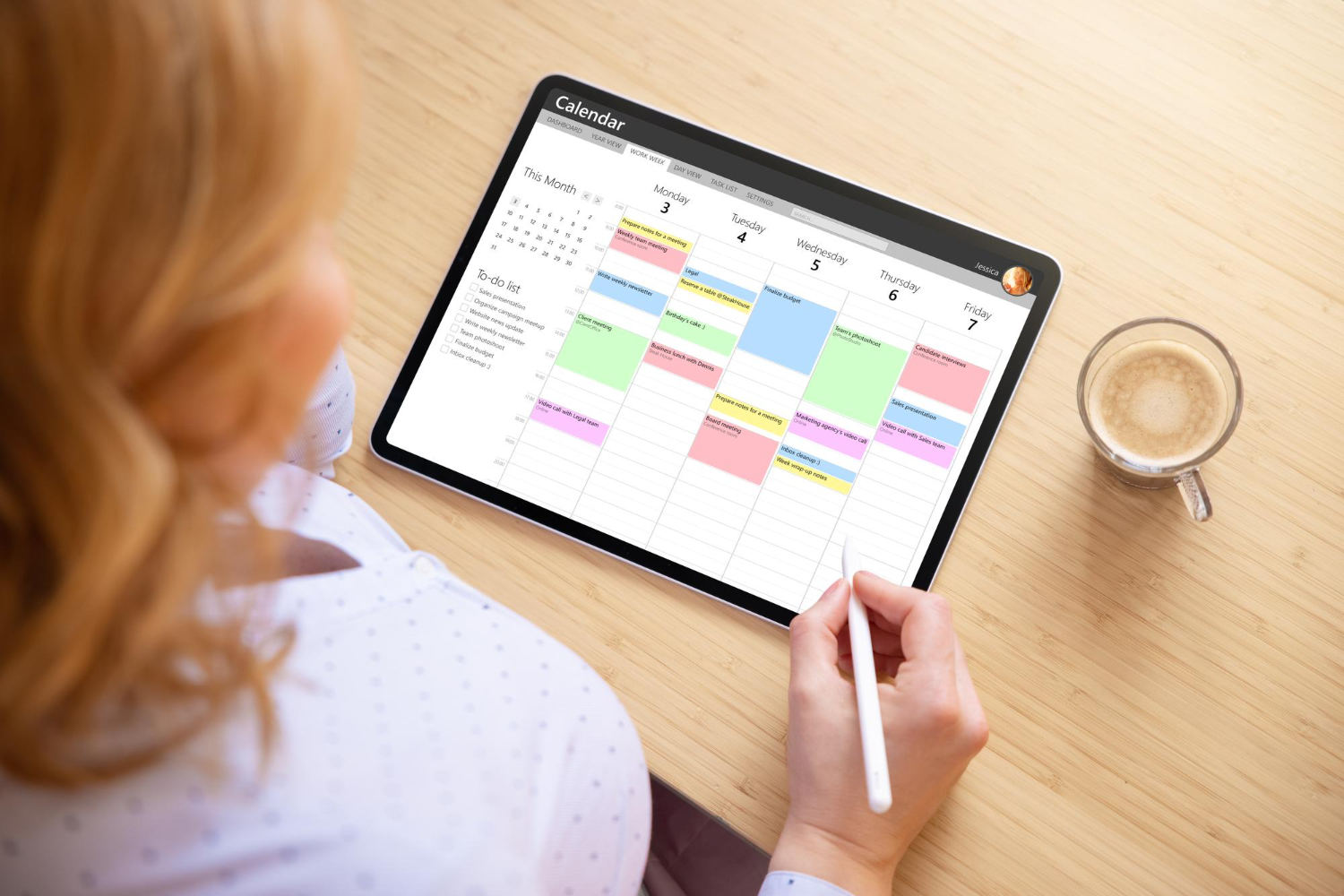
Performance matters. Trello and Slack rarely lag, even with large teams. Zoom’s video quality is reliable. Notion’s flexibility lets users build custom workspaces, but can slow down with lots of data. Zapier’s automation saves hours, but heavy use can get expensive.
Credit: beblau.com
Here’s a summary of the pricing for the most recommended productivity apps:
| App | Free Plan | Lowest Paid Plan (monthly) | Best Value Feature |
|---|---|---|---|
| Trello | Yes | $5 | Visual boards |
| Asana | Yes | $10.99 | Project timelines |
| Slack | Yes | $7.25 | Team channels |
| Google Drive | Yes | $1.99 | Cloud storage |
| RescueTime | Yes | $12 | Time analytics |
| Notion | Yes | $8 | Custom workspaces |
| Zapier | Yes | $19.99 | Automation |
If you’re just starting out, here are some practical combos:
Don’t forget to revisit your tools every few months. Needs change as projects grow. Try new features, look for integrations, and keep your workflow simple.
Apps help, but habits matter most. Set clear goals each morning. Use time tracking to spot wasted hours. Communicate regularly with your team. Automate repetitive tasks. Keep your workspace tidy, and log off when work is done.
You don’t need every app on this list. Find the mix that fits your style, your team, and your projects. Try new tools, but don’t let them become distractions.
For deeper reviews and research, visit Wikipedia’s Productivity Software. They offer a broad overview of the tools and trends in the industry.
ClickUp is often considered the best all-in-one app. It combines task management, docs, goals, and chat. You can build custom workflows and dashboards for any type of remote work.
Paid apps offer advanced features, integrations, and better support. For freelancers handling multiple projects, paid tools like Asana, Dropbox, or RescueTime can be a good investment. Test the free versions first to see if you really need the upgrade.
Use apps like Freedom or RescueTime to block distracting websites and track your focus. Also, set clear work hours, create a dedicated workspace, and communicate boundaries with family or roommates.
Apps like Slack, Microsoft Teams, and Google Drive make it easy to share files, chat, and hold meetings. Project management tools like Trello and Asana organize tasks and keep everyone on the same page.
Look for end-to-end encryption, strong password protection, and two-factor authentication. Cloud storage apps should let you control file permissions and offer secure backups.
Remote work is here to stay, and the right productivity apps make all the difference. Choose tools that suit your workflow, automate where possible, and keep your digital workspace organized. With smart habits and the best apps, you’ll stay focused, efficient, and ready for any challenge.
