

Graphic design is everywhere. From website banners to business cards, packaging to social media posts, good design makes brands stand out. But behind every great design is powerful software. Choosing the best graphic design software can be confusing. There are many options, each with different tools, prices, and strengths. Whether you are a beginner, a student, or a professional designer, finding the right software can change how you work and what you create.
This guide helps you understand the top graphic design tools. You will learn their unique features, see real-world examples, compare prices, and get honest pros and cons. You will also find expert recommendations and answers to common questions. By the end, you will know which graphic design software fits your needs.
What Makes Graphic Design Software “best”?
Not all design software is equal. Designers use different tools for different jobs—logo creation, photo editing, layout design, vector illustration, and more. The best graphic design software combines powerful features, easy use, good support, and flexibility. Here are key factors to consider:
- Ease of use: Can you learn it quickly?
- Features: Does it have the tools you need?
- Performance: Is it fast and stable?
- Collaboration: Can you work with others easily?
- Price: Does it fit your budget?
- Platform: Does it run on your device (Windows, Mac, Linux, web)?
- Support: Is help available when you need it?
Many beginners miss the importance of platform compatibility. For example, some tools work only on Windows or Mac, while others are web-based. Another detail: advanced designers often need vector support (scalable graphics) and raster editing (pixel-based images). Not all software does both well.
The Top Graphic Design Software In 2026
Below, you’ll find a detailed look at the most popular and powerful graphic design software used by professionals and beginners. Each tool is compared across features, price, and real-world use.
1. Adobe Photoshop
Adobe Photoshop is the industry standard for photo editing and raster graphics. It’s used by photographers, designers, and artists worldwide.
- Features: Layer editing, filters, smart objects, advanced retouching, AI-powered tools
- Platform: Windows, Mac
- Pricing: Subscription (Adobe Creative Cloud) — about $20.99/month for Photoshop only
- Pros: Powerful features, huge community, frequent updates, supports plugins
- Cons: Subscription only, steep learning curve, heavy on system resources
Use Cases: Editing product photos, designing web graphics, digital painting, creating social media images.
2. Adobe Illustrator
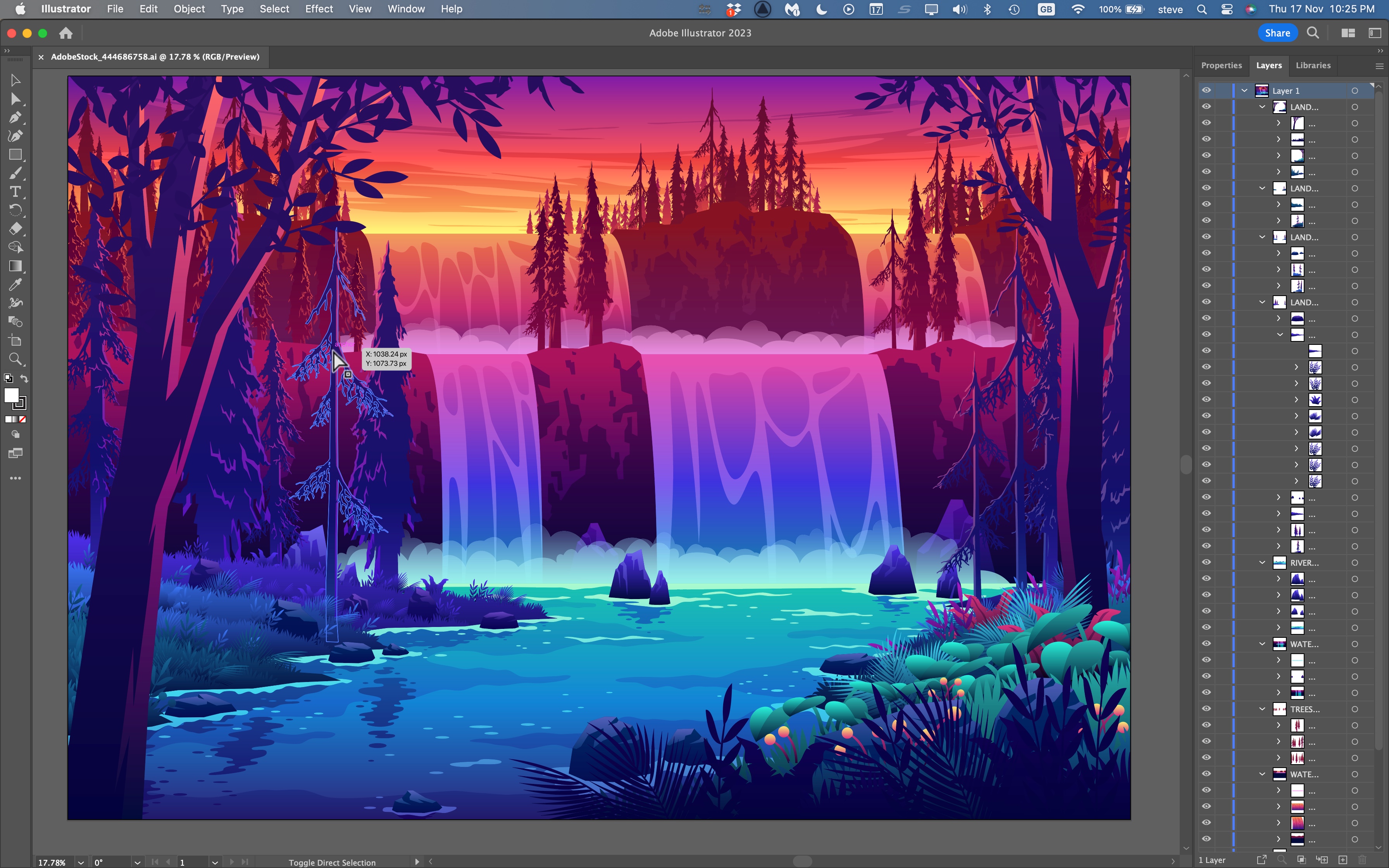
Adobe Illustrator is the top choice for vector graphics—logos, icons, illustrations, and print layouts.
- Features: Vector drawing, typography tools, shape builder, artboards
- Platform: Windows, Mac
- Pricing: Subscription (Adobe Creative Cloud) — about $22.99/month
- Pros: Precise vector tools, great for print and web, integrates with other Adobe apps
- Cons: Subscription only, can be complex for beginners
Use Cases: Logo design, icon sets, packaging design, vector illustrations.
3. Coreldraw Graphics Suite
CorelDRAW is a strong competitor, popular for print design and illustration. It’s favored by many professionals in advertising and publishing.
- Features: Vector and raster editing, layout tools, color management, font management
- Platform: Windows, Mac
- Pricing: Subscription ($22.42/month) or perpetual license ($549 one-time)
- Pros: Flexible pricing, easy interface, strong for print
- Cons: Limited Mac features, fewer online tutorials
Use Cases: Magazine layouts, brochures, signage, business cards.
4. Affinity Designer
Affinity Designer is a modern, affordable alternative to Adobe Illustrator. It’s praised for speed and flexibility.
- Features: Vector and raster modes, live effects, advanced grids, artboards
- Platform: Windows, Mac, iPad
- Pricing: $54.99 one-time (no subscription)
- Pros: Affordable, fast, frequent updates, intuitive for beginners
- Cons: Smaller community, fewer plugins
Use Cases: UI design, web graphics, illustrations, branding materials.
5. Canva
Canva is a web-based design tool loved for its simplicity. It’s great for social media, presentations, and marketing materials.
- Features: Drag-and-drop editor, templates, stock photos, team collaboration
- Platform: Web, mobile apps
- Pricing: Free plan; Pro plan at $12.99/month
- Pros: Easy to use, huge template library, quick sharing
- Cons: Limited advanced editing, not suitable for high-res print
Use Cases: Social posts, marketing flyers, presentations, team projects.
6. Sketch
Sketch is popular for UI and UX design, especially for apps and websites. It’s known for its vector tools and prototyping features.
- Features: Vector editing, symbols, prototyping, plugins
- Platform: Mac only
- Pricing: $9/month per editor (annual billing)
- Pros: Great for app design, fast workflow, collaborative tools
- Cons: Mac-only, not ideal for print
Use Cases: Mobile app UI, website mockups, wireframes, prototyping.
7. Figma
Figma is a web-based tool for interface design and collaboration. It’s rapidly growing in popularity among designers and teams.
- Features: Real-time collaboration, vector editing, prototyping, plugins
- Platform: Web, Windows, Mac, Linux
- Pricing: Free plan; Pro plan starts at $12/editor/month
- Pros: Cloud-based, easy collaboration, cross-platform
- Cons: Needs internet, limited advanced photo editing
Use Cases: Team UI design, wireframing, prototyping, collaborative projects.
8. Inkscape
Inkscape is a free, open-source vector editor. It’s used for illustrations, diagrams, and technical graphics.
- Features: Vector drawing, text tools, SVG support, extensions
- Platform: Windows, Mac, Linux
- Pricing: Free
- Pros: Free, good vector tools, active community
- Cons: Interface can be clunky, slower than paid apps
Use Cases: Vector illustration, diagrams, educational graphics.
9. Gimp (gnu Image Manipulation Program)
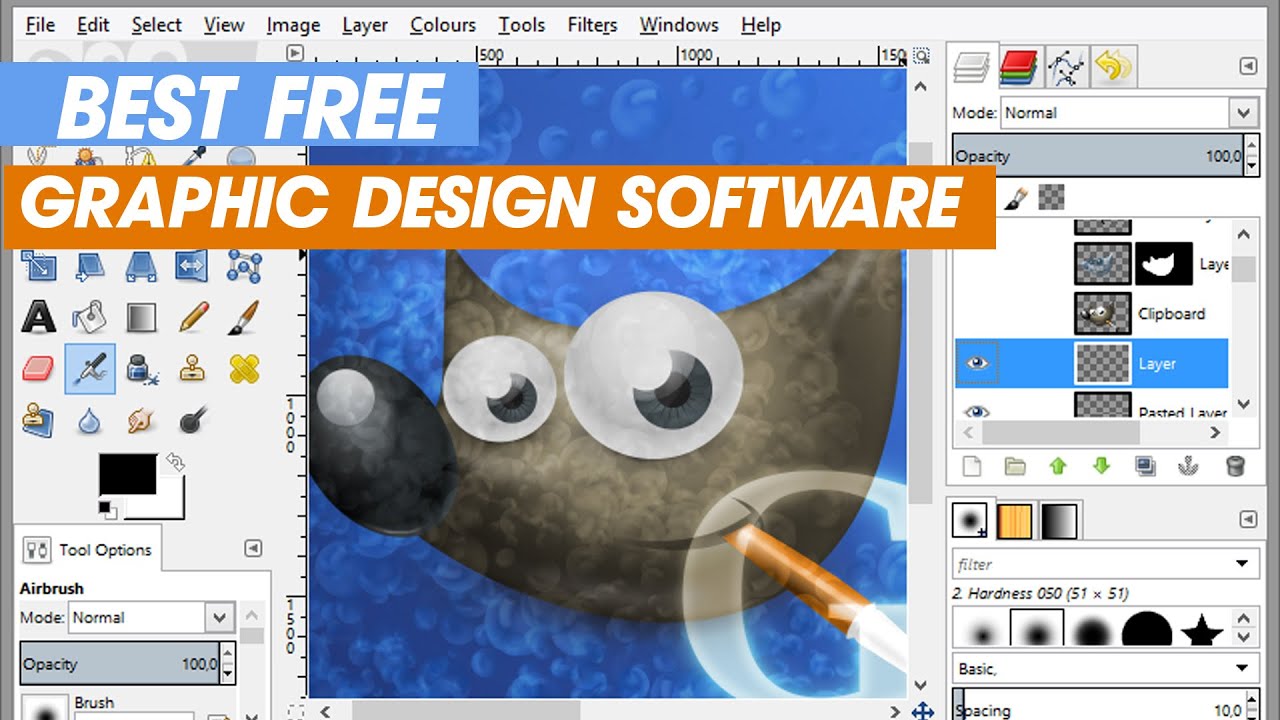
GIMP is a free alternative to Photoshop, focused on photo editing and raster graphics.
- Features: Layer editing, filters, plug-ins, scripting
- Platform: Windows, Mac, Linux
- Pricing: Free
- Pros: Free, flexible, supports many formats
- Cons: Old interface, fewer features than Photoshop
Use Cases: Photo retouching, web graphics, simple design tasks.
10. Procreate
Procreate is a favorite for digital artists and illustrators using the iPad. It offers powerful drawing tools and a smooth interface.
- Features: Brushes, layers, animation, quick export
- Platform: IPad (iOS)
- Pricing: $12.99 one-time purchase
- Pros: Affordable, intuitive, great for sketching
- Cons: IPad only, not for print design
Use Cases: Digital painting, concept art, illustration, quick sketches.

Credit: www.youtube.com
Graphic Design Software Comparison Table
To help you choose, here’s a side-by-side comparison of the top graphic design software:
| Software | Platform | Pricing | Best For | Pros | Cons |
|---|---|---|---|---|---|
| Adobe Photoshop | Windows, Mac | $20.99/month | Photo editing, raster graphics | Powerful, wide support | Subscription, complex |
| Adobe Illustrator | Windows, Mac | $22.99/month | Vector illustration, logos | Precise, integrates well | Subscription, steep learning |
| CorelDRAW | Windows, Mac | $22.42/month or $549 | Print, illustration | Flexible pricing, easy | Mac limited, fewer tutorials |
| Affinity Designer | Windows, Mac, iPad | $54.99 one-time | UI, web graphics | Affordable, fast | Small community |
| Canva | Web, mobile | Free/$12.99/month | Social, marketing | Easy, many templates | Limited editing |
| Sketch | Mac | $9/month | UI/UX, web/app | Fast, collaborative | Mac-only |
| Figma | Web, Windows, Mac, Linux | Free/$12/editor/month | Team UI, prototyping | Cloud, cross-platform | Internet needed |
| Inkscape | Windows, Mac, Linux | Free | Vector, diagrams | Free, active community | Clunky interface |
| GIMP | Windows, Mac, Linux | Free | Photo editing | Free, flexible | Old interface |
| Procreate | iPad | $12.99 one-time | Digital art, sketch | Affordable, intuitive | iPad only |
Real-world Use Cases
Different software serves different needs. Here are practical examples:
- Small business owner: Uses Canva to make flyers and social media posts quickly.
- Professional logo designer: Uses Adobe Illustrator for high-resolution vector logos.
- Photographer: Edits and retouches images in Adobe Photoshop.
- Web designer: Creates website layouts in Figma or Sketch for easy collaboration.
- Student: Starts learning with GIMP or Inkscape (free tools) before moving to paid software.
- Digital artist: Draws illustrations on Procreate using an iPad.
A non-obvious tip: Many businesses use multiple tools together. For example, a designer might create a logo in Illustrator and edit photos in Photoshop, then assemble everything in Canva for marketing.

Credit: flexisourceit.com.au
Pros And Cons: Deep Dive
Let’s look closer at strengths and weaknesses for each software.
Adobe Photoshop
- Pros: Advanced editing, huge plugin library, trusted by professionals.
- Cons: Subscription only, not ideal for vector work, requires strong computer.
Adobe Illustrator
- Pros: Precise vector tools, integrates with other Adobe apps, ideal for print and digital.
- Cons: Subscription, steep learning curve, heavy software.
Coreldraw
- Pros: Flexible pricing, strong for print, easy for beginners.
- Cons: Mac version lacks some features, fewer online tutorials.
Affinity Designer
- Pros: One-time payment, fast, good for both vector and raster work.
- Cons: Smaller user base, fewer plugins.
Canva
- Pros: Simple, fast, huge template library, easy team collaboration.
- Cons: Limited custom editing, not for professional print.
Sketch
- Pros: Great for UI/UX, fast workflow, collaborative features.
- Cons: Only for Mac, not for photo editing.
Figma
- Pros: Real-time collaboration, cloud-based, cross-platform.
- Cons: Internet required, basic photo tools.
Inkscape
- Pros: Free, good vector support, extensible.
- Cons: Slower, old interface, fewer advanced tools.
Gimp
- Pros: Free, flexible, supports many formats.
- Cons: Less polished, not as powerful as Photoshop.
Procreate
- Pros: Affordable, intuitive, perfect for sketching and painting.
- Cons: IPad only, not for print or vector work.
Pricing Comparison Table
Cost matters for many users. Here’s a clear look at prices:
| Software | Price Model | Monthly Cost | One-Time Cost | Free Plan? |
|---|---|---|---|---|
| Adobe Photoshop | Subscription | $20.99 | None | No |
| Adobe Illustrator | Subscription | $22.99 | None | No |
| CorelDRAW | Subscription/One-time | $22.42 | $549 | No |
| Affinity Designer | One-time | None | $54.99 | No |
| Canva | Subscription | $12.99 | None | Yes |
| Sketch | Subscription | $9.00 | None | No |
| Figma | Subscription | $12.00 | None | Yes |
| Inkscape | Free | None | None | Yes |
| GIMP | Free | None | None | Yes |
| Procreate | One-time | None | $12.99 | No |
Expert Recommendations
Choosing the right software depends on your needs, budget, and skill level. Here’s advice from experienced designers:
- Start simple: If you are new, begin with free tools like Canva, GIMP, or Inkscape. You will learn basic design without spending money.
- Go pro for business: For serious work or business use, invest in Adobe Photoshop and Illustrator. They offer the most features and are trusted worldwide.
- Try alternatives: Affinity Designer is great for those who want quality without subscriptions. CorelDRAW is strong for print and layout.
- Collaboration matters: If you work in teams, Figma and Sketch are best for real-time collaboration.
- Mobile artists: For digital painting, Procreate on iPad is excellent.
A hidden mistake: Many beginners only look at price. But missing key features can hurt your work later. Test free trials before buying.
For more technical comparisons, see Wikipedia’s comparison of raster graphics editors.
Unique Features That Stand Out
Some software offers special features that make them unique:
- Adobe Photoshop: AI-powered content-aware fill, advanced masking.
- Illustrator: Pattern creation, variable fonts.
- CorelDRAW: Print color proofing, font manager.
- Affinity Designer: Switch between vector and raster in one document.
- Canva: One-click branding kits.
- Sketch: Reusable symbols and templates.
- Figma: Live multiplayer editing.
- Inkscape: Open-source extensions.
- GIMP: Custom script automation.
- Procreate: Time-lapse recording of drawings.
These details are often missed by beginners. For example, Procreate’s time-lapse lets artists share their drawing process easily—a great feature for social media.

Credit: www.techradar.com
Performance And System Requirements
Performance is important. Heavy software needs strong computers. Here’s a quick look:
| Software | Minimum RAM | CPU | Storage |
|---|---|---|---|
| Adobe Photoshop | 8 GB | Intel/AMD 2 GHz+ | 4 GB |
| Adobe Illustrator | 8 GB | Intel/AMD 2 GHz+ | 2 GB |
| CorelDRAW | 4 GB | Intel/AMD 1.5 GHz+ | 4 GB |
| Affinity Designer | 4 GB | Intel/AMD 1.5 GHz+ | 1 GB |
| Canva | Any | Any | Web |
| Sketch | 4 GB | Intel/Apple Silicon | 500 MB |
| Figma | Any | Any | Web |
| Inkscape | 2 GB | Intel/AMD | 500 MB |
| GIMP | 2 GB | Intel/AMD | 500 MB |
| Procreate | iPad | iPad | 500 MB |
Trends In Graphic Design Software (2026 And Beyond)
Design software is changing fast. Here are some trends:
- AI tools: Automatic editing, smart suggestions, and content creation.
- Cloud collaboration: More apps like Figma allow teams to work together live.
- Mobile design: Tablets and phones are becoming powerful design tools.
- Subscription models: Most top software is moving to subscriptions.
- Accessibility: More apps are adding tools for people with disabilities.
A tip for future-proofing: Choose software that updates often. Tools that add AI and cloud features will stay useful longer.
Frequently Asked Questions
Is Free Graphic Design Software Good Enough For Professional Work?
Free tools like GIMP and Inkscape are good for basic tasks and learning. For big projects or business use, paid tools offer more features and better support. Some professionals use free software, but most prefer paid options for reliability.
What’s The Difference Between Vector And Raster Design?
Vector graphics use shapes and lines, perfect for logos and illustrations. Raster graphics use pixels, great for photos and detailed images. Adobe Illustrator and Inkscape are vector tools, while Photoshop and GIMP are raster.
Can I Use Graphic Design Software On Mobile Devices?
Yes. Canva, Procreate, and Adobe apps have mobile versions. Procreate works only on iPad, while Canva and Adobe have both Android and iOS apps. Some features may be limited compared to desktop versions.
Which Software Is Best For Team Collaboration?
Figma is best for real-time teamwork. Sketch and Canva also offer collaboration, but Figma is strongest for UI/UX design and cloud-based editing.
How Do I Choose The Right Software For My Needs?
List your main tasks (photo editing, logo design, web graphics, etc. ) And your budget. Try free trials. If you need advanced tools or work in a team, consider Figma, Adobe, or Sketch. For solo projects, Canva or Affinity Designer may be enough.
The Right Graphic Design Software For You
Graphic design software powers creativity, business, and communication. With so many options, the best choice depends on your goals, budget, and skill level. Free tools are great to start, but paid software offers more features and support for professionals. As technology grows, cloud and AI tools are making design easier and faster.
If you want to take your design skills to the next level, try different tools and see what fits your workflow. Start with free trials, read user reviews, and ask other designers for advice. The best graphic design software is the one that helps you create, share, and grow.
Make your choice, and begin designing today.