Every year, more people lose valuable files—photos, work documents, videos—because they didn’t back up their data. Whether you’re a freelancer, gamer, remote worker, or small business owner, keeping your files safe is now more important than ever. Cloud storage is convenient, but it often costs more over time and depends on your internet speed. For many, the best solution is buying a reliable external hard drive for backup storage.
But with so many options, which external hard drive is best for you? It depends on how much data you need to store, how fast you want to transfer files, and your budget. This guide explains everything you need to know about picking the best external hard drive for backup, compares the top choices for 2024, and gives you tips to avoid common mistakes.
Everyone has files they can’t afford to lose—family photos, business records, or project files. Computers can fail, get infected by viruses, or even get stolen. Cloud services are great, but what if your internet goes down? An external hard drive gives you full control over your backups. You can store huge amounts of data, keep it offline, and use it anywhere.
Many people only realize the value of backup after a data loss. Regular backups to an external drive protect you from accidents, malware, and hardware failures. With backup software, you can automate the process so you never forget.
Not all external hard drives are equal. Here’s what really matters before you buy:
Most drives come in sizes from 500GB up to 20TB or more. If you only need to back up documents and photos, 1–2TB is usually enough. For videos, games, or large project files, consider 4TB or higher.
Drives use either HDD (hard disk drive) or SSD (solid-state drive) technology. HDDs are cheaper and offer more space, but SSDs are much faster and more durable. If you regularly transfer big files, or want quick backups, SSDs are better.
Most drives connect via USB-A or USB-C. Newer drives use USB 3.1 or USB 3.2 for faster speeds. Some also offer Thunderbolt 3 or 4, ideal for Mac users and large data transfers.
If you travel or move your drive often, choose a model with shock resistance or water resistance. Some drives are made for rough environments, while others are slim and light for easy transport.
Some drives come with backup software, password protection, or encryption. These features make it easier to keep your data safe and automate backups.
Prices range from about $50 for a basic 1TB HDD to $500+ for high-end SSDs. Most drives come with a 2- to 3-year warranty. Don’t just buy the cheapest—consider reliability and support.
Credit: www.space.com
Choosing between HDD and SSD is a big decision. Here’s a clear comparison:
| Feature | HDD | SSD |
|---|---|---|
| Speed | Up to 150 MB/s | 500 MB/s – 2000 MB/s |
| Cost per TB | Lower | Higher |
| Durability | Mechanical (can fail if dropped) | No moving parts (shock-resistant) |
| Best Use | Long-term, large backups | Frequent transfers, on-the-go |
Non-obvious insight: SSDs are not only faster but also much more reliable if you travel often. However, for pure backup that stays at your desk, HDDs give more space for the money.
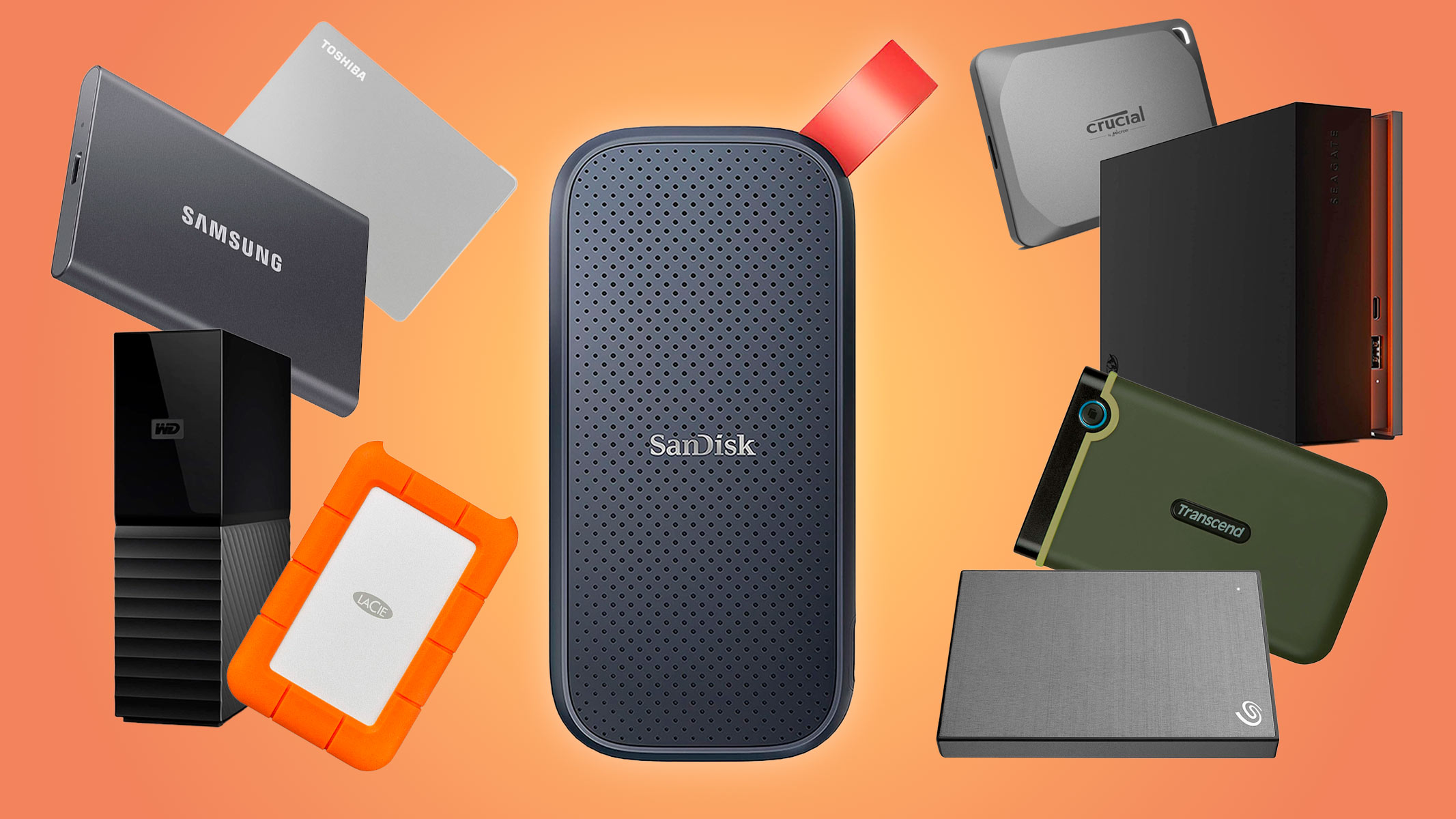
After testing, researching reviews, and comparing features, these are the best external hard drives for backup this year:
One of the most popular and trusted drives, the WD My Passport offers reliable storage for most users. Available in 1TB to 5TB sizes, it comes with built-in backup software and 256-bit AES hardware encryption for security. It’s small, lightweight, and comes in different colors.
Pros:
Cons:
Who should buy: Home users, students, and small business owners needing reliable backup.
The Seagate Backup Plus is a top pick for its large capacity (up to 5TB), stylish metal design, and easy-to-use backup software. It works with both Mac and Windows out of the box.
Pros:
Cons:
Who should buy: Anyone who values design and cross-platform compatibility.
If you want speed, the Samsung T7 SSD is hard to beat. It uses USB 3.2 Gen2 for up to 1050 MB/s transfer speeds. The solid metal body keeps your data safe from drops, and it comes with password protection.
Pros:
Cons:
Who should buy: Remote workers, gamers, and video editors needing fast, portable backup.
The SanDisk Extreme V2 offers shock and water resistance (IP55), making it great for travel or outdoor use. With up to 4TB storage and 1050 MB/s speed, it’s both tough and fast.
Pros:
Cons:
Who should buy: Photographers, content creators, and travelers.
Known for its bright orange rubber bumper, the LaCie Rugged Mini is built for durability. It’s drop-resistant up to 4 feet, and has options from 1TB to 5TB.
Pros:
Cons:
Who should buy: Outdoor workers, field researchers, and anyone who needs extra protection.
If you want massive capacity for a low price, the Seagate Expansion Desktop offers up to 18TB. It’s not portable, but it’s perfect for backing up your entire computer or a small business server.
Pros:
Cons:
Who should buy: Small businesses, home offices, or anyone with lots of data.
The Crucial X8 is another fast, durable SSD with speeds up to 1050 MB/s. It works with PC, Mac, and even some phones and game consoles.
Pros:
Cons:
Who should buy: Multi-device users, gamers, and creators.
Here’s a quick overview comparing specs and features:
| Model | Type | Capacity | Speed | Warranty | Best For |
|---|---|---|---|---|---|
| WD My Passport | HDD | 1–5TB | ~120 MB/s | 3 years | General backup |
| Seagate Backup Plus | HDD | 1–5TB | ~120 MB/s | 2 years | Cross-platform |
| Samsung T7 | SSD | 500GB–2TB | 1050 MB/s | 3 years | Speed/portability |
| SanDisk Extreme V2 | SSD | 500GB–4TB | 1050 MB/s | 5 years | Rugged use |
| LaCie Rugged Mini | HDD | 1–5TB | ~120 MB/s | 2 years | Outdoor/durable |
| Seagate Expansion | HDD | 2–18TB | ~160 MB/s | 2 years | Massive backup |
| Crucial X8 | SSD | 500GB–4TB | 1050 MB/s | 3 years | Multi-device |
External hard drive prices change often, but here’s a typical range for 2024:
| Model | 1TB Price | 2TB Price | 4TB Price | 8TB Price |
|---|---|---|---|---|
| WD My Passport | $55 | $75 | $110 | N/A |
| Seagate Backup Plus | $55 | $80 | $120 | N/A |
| Samsung T7 | $100 | $130 | $250 | N/A |
| SanDisk Extreme V2 | $110 | $150 | $270 | N/A |
| LaCie Rugged Mini | $70 | $95 | $140 | N/A |
| Seagate Expansion | N/A | $65 | $110 | $200 |
| Crucial X8 | $90 | $120 | $220 | N/A |
*Note: Prices can change based on sales, region, and retailer. SSDs are generally more expensive than HDDs for the same capacity.*
Once you’ve chosen your drive, setup is simple but important for a reliable backup:
Pro tip: For critical files, use the 3-2-1 backup rule—keep three copies, on two types of storage, with one copy offsite.
Many first-time buyers make simple mistakes that can lead to lost data or wasted money. Here’s what to watch out for:
Non-obvious insight: Many people think all USB drives are equal, but USB-C and Thunderbolt give much faster speeds. If your laptop supports it, match your drive’s port for best performance.
Speeds listed on boxes are often the best-case scenario. In daily use, you’ll see:
If you back up once a week, even a slower drive is fine. If you sync daily or move lots of data, SSDs are worth the extra cost.
The best drive depends on your main use case:
A backup is only useful if it’s available when you need it. To protect your data:
Extra tip: If you use cloud backup, keep a physical copy for disasters like fire or internet outages.
Technology changes fast. Here are signs it’s time to buy a new drive:
Don’t wait for a drive to fail. Upgrading early can save you from a data loss disaster.

Credit: www.macworld.com
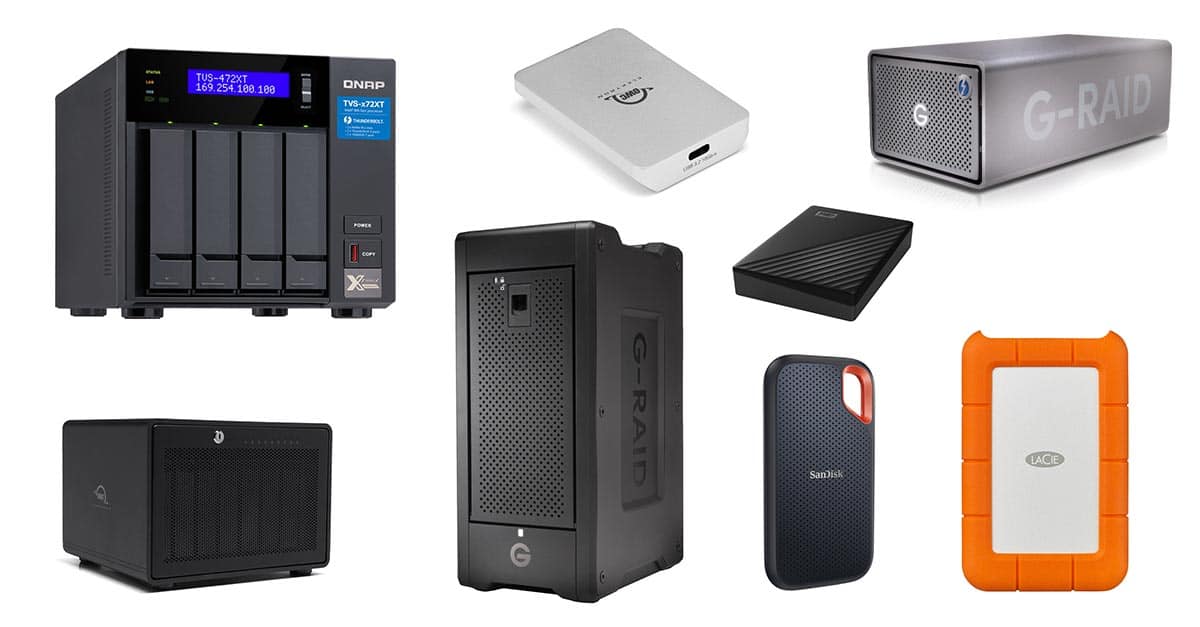
While external drives are the most popular, you have other options:
For most, a combination of an external hard drive plus cloud backup offers the best balance of speed, cost, and safety.
For more in-depth technical information, the Wikipedia External Hard Drive page is a reliable resource.
Credit: shuttermuse.com
Most home users are fine with 2TB for documents and photos. If you have lots of videos, games, or work on creative projects, consider 4TB or more. Businesses and power users should look at 8TB or higher. Always buy more than you think you need; files grow quickly.
Ideally, you should back up important files at least once a week. For business or work data, daily backups are better. Many drives come with software to automate this, so you don’t have to remember.
SSDs are much faster and more durable than HDDs, but they cost more per TB. If you need speed or carry your drive often, SSDs are worth it. For long-term, stationary backups, HDDs give better value.
Yes, but you may need to format the drive as exFAT for full compatibility between Windows and Mac. Most new drives come formatted for Windows but can be changed easily. Always back up your data before reformatting.
It’s safe, but it’s better to disconnect the drive when not in use, especially for backup drives. This protects against malware, ransomware, and accidental deletion. For regular file use, leaving it plugged in is fine, but for backup, keep it separate.
Choosing the best external hard drive for backup storage is one of the smartest investments for your data safety. The right drive gives you peace of mind, whether you’re protecting family photos, work projects, or your entire business. Take time to match your needs—storage, speed, and portability—with the best drive you can afford. Set up regular backups, and your data will be safe from surprises.
Don’t wait for a disaster to remind you how important your files are. With the information and recommendations in this guide, you’re ready to pick the perfect external hard drive and back up your most valuable digital life.
