Choosing the right video editing software can feel overwhelming, especially if you’re just starting out. There are many options, each with different features, prices, and learning curves. If you’re a beginner, you want something easy to use, but also powerful enough to create videos that look professional. This guide will help you find the best video editing software for beginners, understand their main features, compare prices, and avoid common mistakes.
Whether you want to make YouTube videos, edit family clips, or create content for your business, you’ll discover tools that fit your needs and budget. We’ll cover popular editors, explain which features matter most, and show real-world examples so you can start editing with confidence.
By the end, you’ll know which software suits you, and you’ll be ready to create videos that look great.
For new editors, the best software should be easy to learn, offer helpful tutorials, and not overwhelm you with too many advanced features. Here are the most important qualities to look for:
Beginners often overlook the importance of export options (saving your finished video in different formats) and mobile compatibility. Make sure your software lets you save videos for YouTube, Instagram, or other platforms, and check if there’s a mobile app for editing on the go.
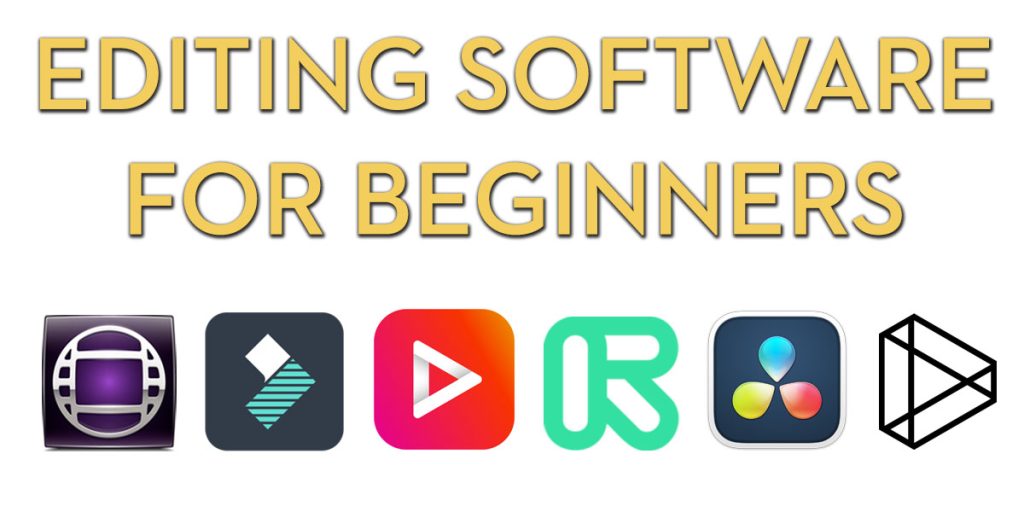
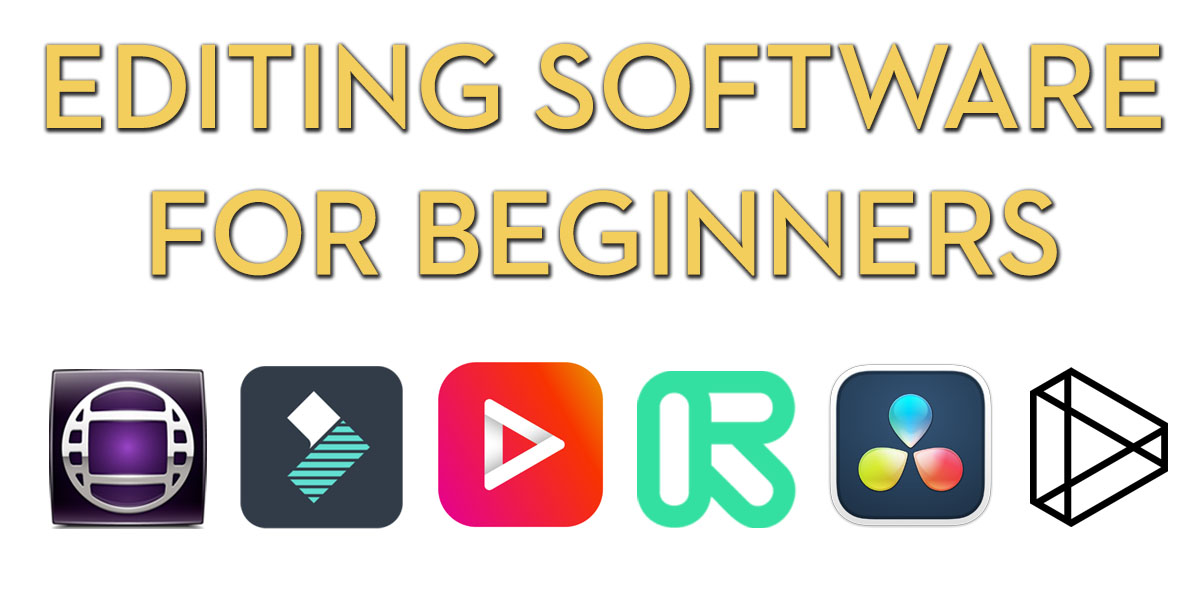
Let’s look at the most popular and beginner-friendly video editors. Each has unique strengths, so you can pick the one that matches your goals.
Adobe Premiere Elements is designed for people new to video editing. Unlike Premiere Pro, which is used by professionals, Elements is simpler and easier to use.
Pros:
Cons:
Use Case: Editing family videos, travel clips, or small business promos.
Filmora is famous for being simple, stylish, and affordable. It’s easy for beginners but powerful enough for creative projects.
Pros:
Cons:
Use Case: YouTube videos, school projects, social media content.
iMovie is Apple’s free video editor for Mac and iOS devices. It’s perfect for beginners who use Apple products.
Pros:
Cons:
Use Case: Editing family movies, school assignments, beginner YouTubers.
DaVinci Resolve offers a free version that’s surprisingly powerful. It’s known for color grading, but the basic editing tools are easy to use.
Pros:
Cons:
Use Case: Creative projects, short films, advanced hobbyists.
PowerDirector blends simple editing with more advanced tools. It’s fast and offers many templates.
Pros:
Cons:
Use Case: Social media videos, YouTube content, small business marketing.
HitFilm Express is a free editor with strong effects and animation tools. Great for beginners who want to experiment.
Pros:
Cons:
Use Case: Short films, music videos, effects-driven content.
OpenShot is a simple, open-source editor. It’s free and works on Windows, Mac, and Linux.
Pros:
Cons:
Use Case: Simple home videos, quick edits, basic YouTube uploads.
Lightworks is a free editor with professional roots. The free version has limits, but it’s still good for beginners.
Pros:
Cons:
Use Case: School projects, social media content, entry-level filmmakers.
Clipchamp is a web-based editor owned by Microsoft. Easy for beginners and works in your browser.
Pros:
Cons:
Use Case: Quick edits, social media videos, business promos.
Movavi Video Editor focuses on ease of use and quick results. It’s beginner-friendly and offers helpful guides.
Pros:
Cons:
Use Case: Family videos, YouTube content, business presentations.
Credit: jonnyelwyn.co.uk
Choosing between these editors can be hard. Here’s a side-by-side comparison of the most important factors:
| Software | Price | Platform | Ease of Use | Free Version? | Export Quality |
|---|---|---|---|---|---|
| Adobe Premiere Elements | $99.99 (one-time) | Windows, Mac | High | No | Up to 4K |
| Filmora | $49.99/year or $79.99/lifetime | Windows, Mac | High | Yes (watermark) | Up to 4K |
| iMovie | Free | Mac, iOS | Very High | Yes | Up to 4K |
| DaVinci Resolve | Free / $295 Studio | Windows, Mac, Linux | Medium | Yes | Up to 4K |
| PowerDirector | $69.99/year or $99.99 lifetime | Windows, Mac | High | No | Up to 4K |
| HitFilm Express | Free + add-ons | Windows, Mac | Medium | Yes | Up to 4K |
| OpenShot | Free | Windows, Mac, Linux | High | Yes | Up to 4K |
| Lightworks | Free / $24.99/month Pro | Windows, Mac, Linux | Medium | Yes | Up to 720p (Free) |
| Clipchamp | Free / $12/month | Web-based | Very High | Yes | Up to 1080p |
| Movavi Video Editor | $54.95/year or $79.95/lifetime | Windows, Mac | High | Yes (watermark) | Up to 4K |
Price matters, but so does value. Free editors are good for simple projects, but paid tools often offer better effects, faster exports, and customer support. Here’s a quick breakdown:
Many beginners make the mistake of paying for features they won’t use. Start with a free or low-cost editor, and upgrade only if you need more advanced tools.
Here’s a summary of the main strengths and weaknesses for each software:
| Software | Pros | Cons |
|---|---|---|
| Adobe Premiere Elements | Easy guided edits, reliable, good support | Higher price, limited advanced features |
| Filmora | Easy drag-and-drop, lots of effects, affordable | Watermark on free trial, pay for advanced tools |
| iMovie | Free, simple, good quality | Only for Apple devices |
| DaVinci Resolve | Powerful free version, pro color tools | Steeper learning curve |
| PowerDirector | Fast, many templates, good for YouTube | Some features paid, crowded interface |
| HitFilm Express | Free, creative effects, active community | Add-ons expensive, needs strong PC |
| OpenShot | Free, simple, works everywhere | Slow with big files, basic features |
| Lightworks | Free, pro roots, multi-platform | Limits on export, confusing interface |
| Clipchamp | Web-based, fast, easy sharing | Export limits, needs internet |
| Movavi Video Editor | Easy, fast, many templates | Watermark on free trial, limited advanced tools |
Different editors fit different needs. Here are some examples to help you decide:
Many beginners forget to plan their workflow. For example, if you record on your phone, choose software that supports mobile import. If you want to share to social media, pick an editor with direct export options.
Not all features are equally important when you start editing videos. Focus on these basics:
Some tools offer automatic video creation—they build a video from your clips with one click. This is useful for beginners, but always check the result before publishing.
A non-obvious tip: Most beginners overlook the importance of audio quality. Even a simple editor lets you remove background noise or add clean music—this makes your video feel more professional.
Credit: www.creativebloq.com
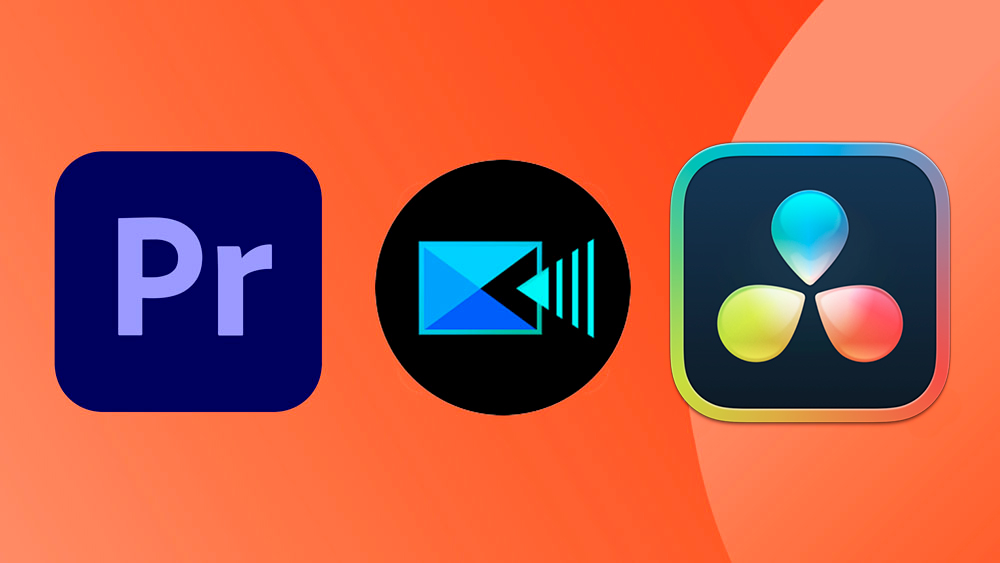
If you want the safest choice, start with Filmora or iMovie (if you use Apple). They are easy, quick, and have plenty of tutorials. If you want more creative control or plan to grow your skills, try DaVinci Resolve or HitFilm Express—they offer advanced tools for free.
For business or marketing, Premiere Elements and PowerDirector are reliable and offer strong support. If you need a free, simple editor for quick jobs, OpenShot and Clipchamp are great.
Remember: Try a few programs before buying or subscribing. Many offer free trials, so you can test the interface and features.
According to a recent survey by TechRadar, iMovie is the most used free editor among beginners in the US, with over 30% market share for Mac users. Filmora is popular worldwide, especially in Asia and Europe. DaVinci Resolve is gaining attention for its free pro tools, with over 1 million downloads in 2023.
User satisfaction scores (2023):
| Software | User Score (out of 10) |
|---|---|
| Filmora | 8.7 |
| iMovie | 8.9 |
| DaVinci Resolve | 8.5 |
| PowerDirector | 8.2 |
| HitFilm Express | 8.3 |
| OpenShot | 7.8 |
| Lightworks | 7.9 |
| Clipchamp | 8.0 |
| Movavi Video Editor | 8.4 |
| Adobe Premiere Elements | 8.6 |
Learning video editing is easier with good resources. Most editors have official tutorials, YouTube guides, and user forums. For example:
You can also find editing tips and tricks on Videomaker.com, one of the most respected sources for video editing advice.
Ask yourself these questions before deciding:
If you’re unsure, start with a free tool. Upgrade only if you need more features.
Most beginners find iMovie (for Mac) and Filmora (for Windows/Mac) the easiest to learn. Both have simple interfaces and helpful tutorials.
Yes. Editors like iMovie, OpenShot, DaVinci Resolve, and HitFilm Express offer free versions with enough features for basic editing.
Paid editors usually offer more effects, faster exports, better support, and no watermarks. Free editors are good for simple projects but may have limits.
Yes. Many programs, like iMovie and FilmoraGo, have mobile apps. These let you edit videos directly from your phone.
Watch tutorials, join forums, and practice editing with different software. Start simple and learn one new skill with each project.
The best video editing software for beginners is the one that feels comfortable, fits your budget, and helps you create the videos you want. Don’t worry about picking the “perfect” tool—most editors offer free trials or versions, so you can experiment before spending money.
Start with Filmora, iMovie, or OpenShot for simple projects. Try DaVinci Resolve or HitFilm Express if you want more creative options. Upgrade only when you need advanced features or support.
Remember, video editing is a skill you build over time. The right software is just the beginning. Choose one, start editing, and enjoy the process of making your ideas come to life.
Ready to create your first video? Download a beginner-friendly editor, try some basic edits, and share your work with friends or online. Your editing journey starts now.
Credit: jonnyelwyn.co.uk
