Graphic design is everywhere—on websites, social media, packaging, ads, and even street signs. The software you use can shape your creative work, whether you’re a beginner, a student, or a professional. Choosing the best graphic design software matters, and with so many choices today, it can feel overwhelming. Some tools are perfect for digital illustration, others for photo editing, and some make branding or web graphics easy. Knowing which software fits your needs will save you time, money, and a lot of stress.
In this in-depth guide, you’ll discover the leading graphic design programs, their strengths, weaknesses, and how they compare. You’ll learn which ones are best for beginners, which excel in professional environments, and how pricing works. We’ll also look at real-world examples and answer common questions, so you can make a confident decision for your creative journey.
Before you dive into the list, it helps to understand what sets great graphic design software apart. Here are the most important features:
Some software focuses on one area, like photo editing, while others try to be all-in-one solutions. The best choice often depends on your goals and experience.
Below is a detailed comparison of the best graphic design software. This table covers key features, platforms, and pricing to help you find the right tool for your needs.
| Software | Main Focus | Platforms | Pricing | Best For |
|---|---|---|---|---|
| Adobe Photoshop | Photo Editing, Digital Art | Windows, Mac | $20.99/mo | Professionals, Photographers |
| Adobe Illustrator | Vector Graphics, Logos | Windows, Mac | $20.99/mo | Logo Designers, Illustrators |
| CorelDRAW | Vector Design, Layout | Windows, Mac | $22.42/mo or $299/yr | Print Designers |
| Affinity Designer | Vector & Raster Design | Windows, Mac, iPad | $69.99 one-time | Cost-Conscious Pros |
| Canva | Web Graphics, Social Media | Web, iOS, Android | Free, Pro $12.99/mo | Beginners, Marketers |
| GIMP | Photo Editing, Open Source | Windows, Mac, Linux | Free | Hobbyists, Students |
| Figma | UI/UX, Collaboration | Web, Windows, Mac | Free, Pro $12/mo | Teams, App Designers |
| Sketch | UI Design, Prototyping | Mac | $9/mo or $99/yr | Mac UI Designers |
| Inkscape | Vector Design, Open Source | Windows, Mac, Linux | Free | Budget Users |
| Procreate | Digital Illustration | iPad | $12.99 one-time | Artists, Illustrators |
Adobe Photoshop is the industry leader for photo editing and digital art. It has been used by professionals for decades to create everything from magazine covers to websites and complex illustrations.
Photoshop costs $20.99/month as part of Adobe’s Creative Cloud. There are bundle options with other Adobe apps for a higher fee.
Many beginners try to use Photoshop for logo design, but vector-based tools like Illustrator are better suited for that. Photoshop is best for raster images and photo-based work.
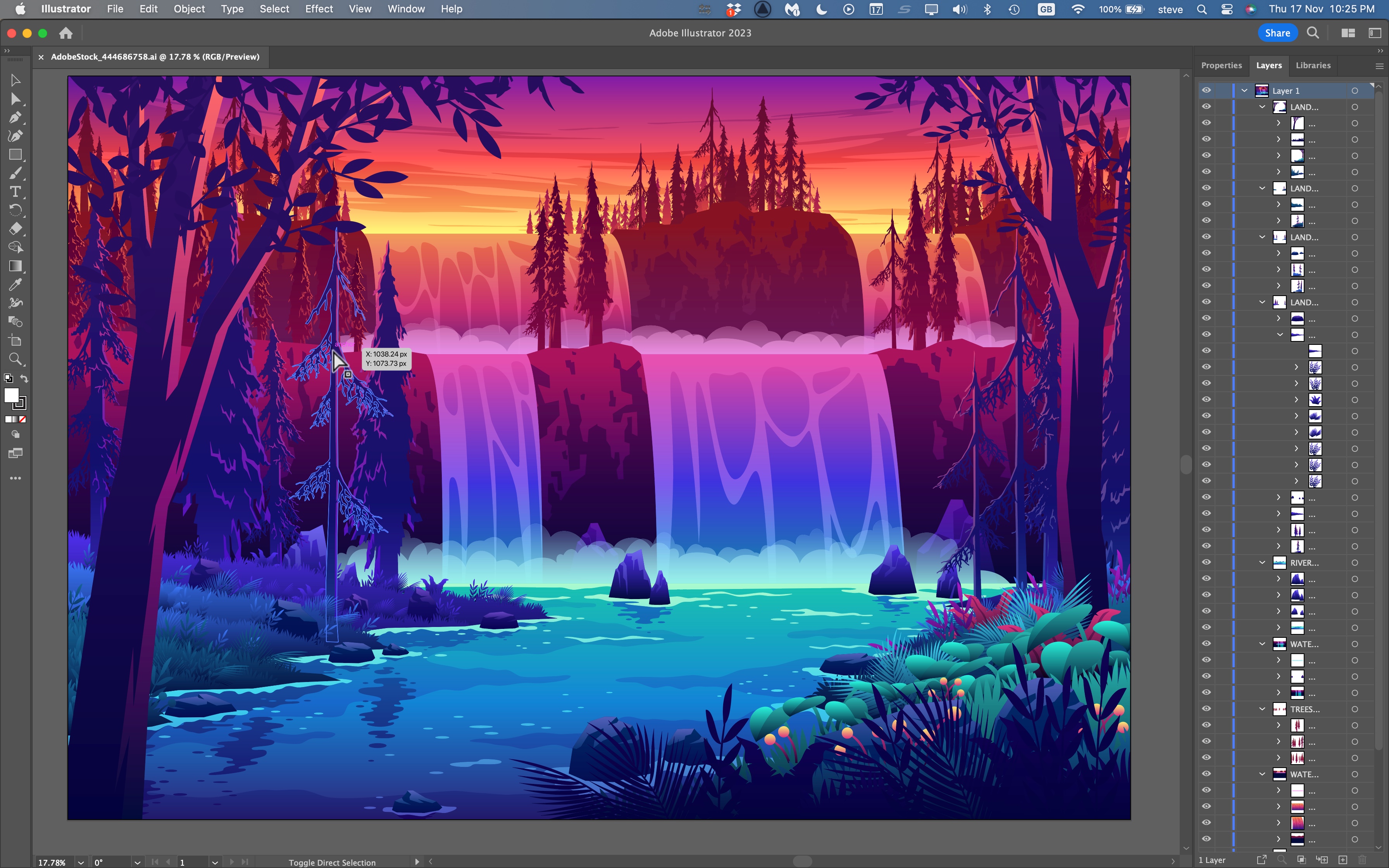
Adobe Illustrator is the standard for vector graphic design. Vectors are images made from lines and shapes, so they don’t lose quality when you resize them.
Same as Photoshop, $20. 99/month. Part of the Adobe Creative Cloud.
Many users don’t realize Illustrator can export directly to SVG for web use, making it easier to create responsive graphics.
Credit: www.youtube.com
CorelDRAW has a strong reputation in print design and vector illustration, especially in industries like sign-making and packaging.
$22.42/month or $299/year, with perpetual licenses sometimes available.
Many beginners use raster images in CorelDRAW by accident, leading to blurry prints. Always use vectors for print work.
Affinity Designer is a favorite for those who want professional features without a subscription. It offers both vector and raster design in one package.
$69.99 for a perpetual license. Updates often included.
Affinity Designer can open and export Adobe Illustrator files (AI), making it easier to switch or collaborate with Adobe users.
Canva is a web-based tool that brings graphic design to everyone. It’s popular among marketers, small businesses, and non-designers.
Free basic plan. Pro plan is $12.99/month with extra templates and features.
Canva’s “Brand Kit” lets you store colors, logos, and fonts for consistent branding—a feature many beginners overlook.
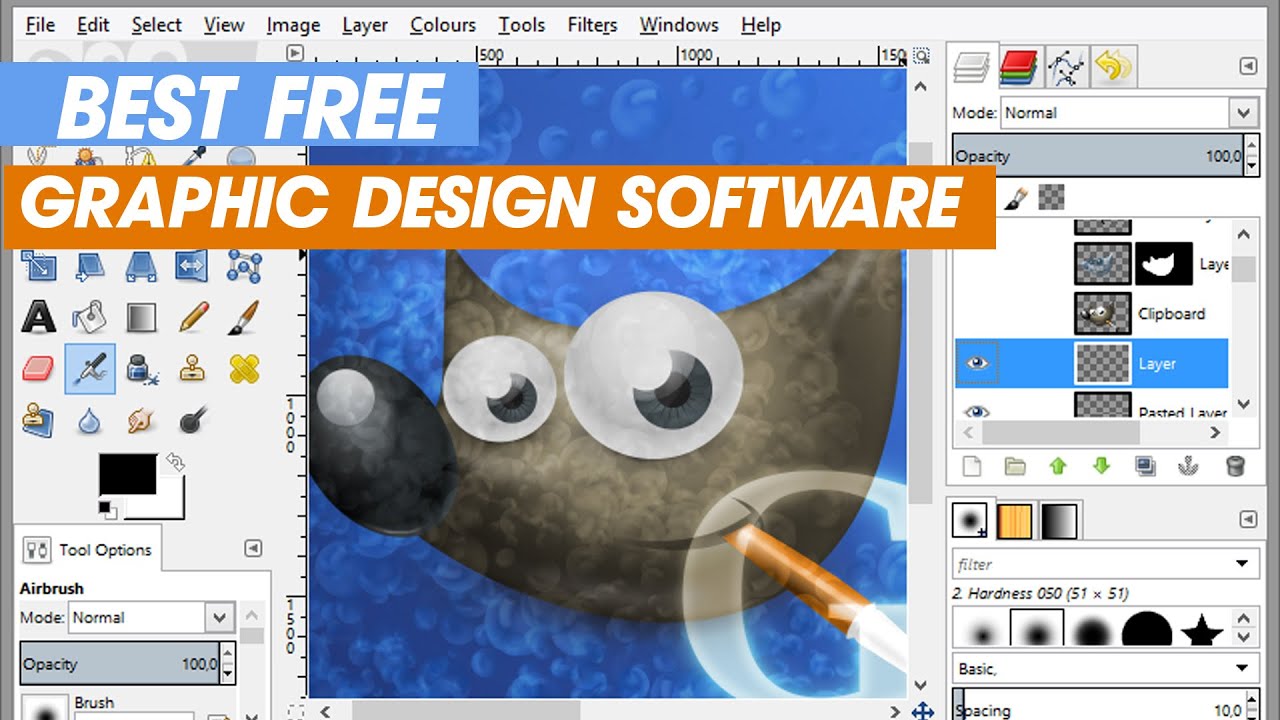
GIMP (GNU Image Manipulation Program) is a free, open-source alternative to Photoshop. It’s popular among students, hobbyists, and those on a budget.
Free to download and use on Windows, Mac, and Linux.
GIMP can open Photoshop PSD files, but some layer effects may not transfer perfectly.
Figma is a cloud-based design tool focused on UI/UX and team collaboration. It’s widely used in the tech industry for app and web design.
Free for individuals. Pro plan is $12/month per editor.
Figma’s plugins can automate repetitive tasks, like exporting assets for developers.
Sketch is a Mac-only tool known for its UI and web design capabilities. It’s a favorite among app designers and startups.
$9/month or $99/year per user.
Sketch’s “Symbols” feature lets you update all instances of a button or icon instantly, saving lots of time in large projects.
Inkscape is a free, open-source vector graphics editor, similar to Adobe Illustrator. It’s popular with budget-conscious designers.
Free on Windows, Mac, and Linux.
Many users forget to export to the correct format for print or web. Always check your final file type.
Procreate is a digital illustration app for iPad. It’s popular among artists, illustrators, and anyone who loves to draw by hand.
$12.99 one-time purchase on the App Store.
Procreate’s time-lapse feature can automatically create process videos, which are great for social media marketing.
To help you see how these tools compare side by side, here’s a table focusing on major features.
| Software | Vector Support | Photo Editing | Templates | Team Collaboration | Mobile App |
|---|---|---|---|---|---|
| Photoshop | No | Yes | Limited | Limited | Yes (iPad) |
| Illustrator | Yes | No | Limited | Limited | Yes (iPad) |
| CorelDRAW | Yes | Some | Yes | No | No |
| Affinity Designer | Yes | Yes | No | No | Yes |
| Canva | Limited | Limited | Yes | Yes | Yes |
| GIMP | No | Yes | No | No | No |
| Figma | Yes | No | Some | Yes | Yes (Browser) |
| Sketch | Yes | No | Some | Yes | No |
| Inkscape | Yes | No | No | No | No |
| Procreate | No | No | No | No | Yes (iPad) |
Let’s break down the cost of each software to help you plan your budget.
Credit: www.techradar.com
For example, a freelance designer might use Photoshop for retouching client photos, Illustrator for logos, and Canva for quick Instagram posts. A startup may rely on Figma or Sketch for rapid prototyping and team feedback.
With so many options, it’s important to match the tool to your needs:
Non-Obvious Insight: Many professionals use two or three tools together. For example, you might sketch in Procreate, refine in Affinity Designer, and export assets in Photoshop.
GIMP and Inkscape are the top free choices. GIMP is better for photo editing, while Inkscape is ideal for vector graphics like logos. Both have active communities and tutorials, so you can learn at your own pace.
Yes. Canva, Procreate, Affinity Designer, and even Photoshop have mobile or iPad versions. Procreate is especially popular for iPad users who want to draw by hand.
Vector graphics use lines and shapes, so they stay sharp at any size (good for logos). Raster graphics are made from pixels, so enlarging them can make them blurry (good for photos). Choose your software based on the type of graphic you need.
It depends on your needs. Subscriptions (like Adobe) offer regular updates and cloud features, but can be expensive. One-time licenses (like Affinity Designer or Procreate) are cheaper in the long run, but may lack some advanced features.
Figma leads in real-time team collaboration, letting multiple users work on the same file at once. Canva and Sketch also offer good team features, but Figma is the top choice for remote or distributed teams.
Credit: flexisourceit.com.au
Choosing the best graphic design software is about matching your needs, skills, and budget. For most professionals, Adobe Photoshop and Illustrator still set the standard, but smart, modern alternatives like Affinity Designer, Figma, and Procreate are changing the industry. Free tools like GIMP and Inkscape open doors for beginners and hobbyists, while web-based solutions like Canva make design accessible to everyone.
Don’t be afraid to try a few options before making your final choice. Many programs offer free trials or free versions, so you can test what feels best for your workflow. Remember, the right software can help you create stunning designs, impress clients, and enjoy your creative work even more.
For more details on specific features and user reviews, check the official websites or resources like Wikipedia.
Ready to level up your design skills? Pick your favorite tool from this list and start creating today!
